
Just bought the new OnePlus 15? Before you start installing apps and moving your data, there are several settings you should change immediately. These simple tweaks will make your phone faster, improve battery life, enhance privacy, unlock AI features, and help you get the most out of OxygenOS.
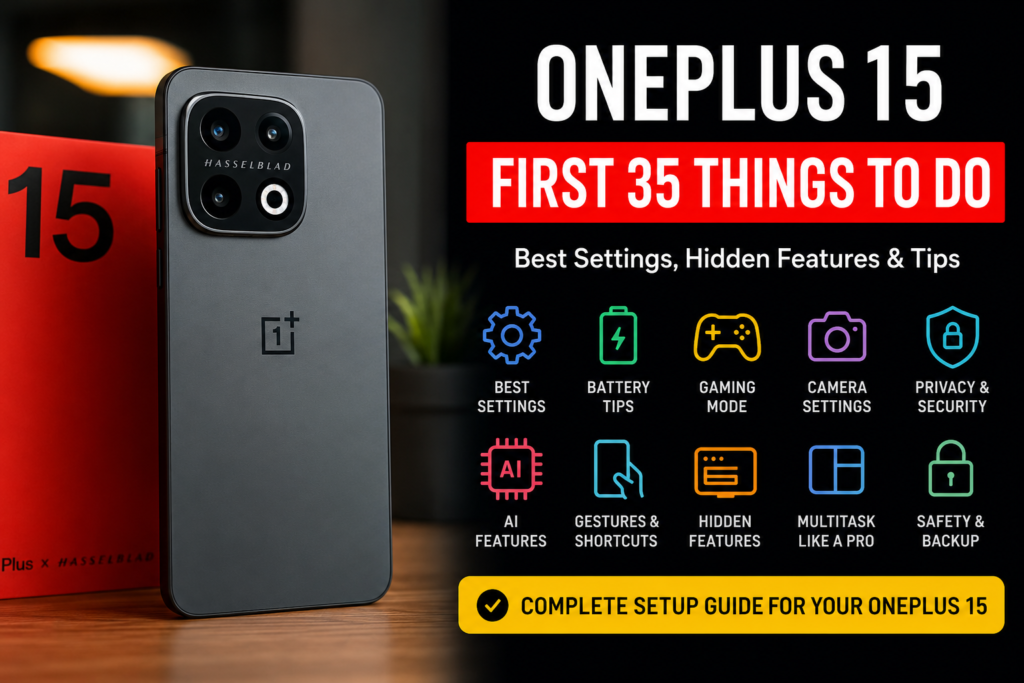
Whether you’re upgrading from an older OnePlus phone, switching from Samsung, Google Pixel, Xiaomi, or even an iPhone, this guide covers everything you need to know.
Unlike most setup guides that simply list settings, this article explains why each setting matters, when you should use it, and whether it’s actually worth enabling.
Let’s begin.
Why You Shouldn’t Use the Default Settings
OnePlus does an excellent job with OxygenOS, but like most Android phones, many useful features are disabled by default.
During my initial setup of the OnePlus 15, I noticed several things:
- AI tools weren’t fully configured.
- Battery optimization wasn’t customized.
- Display wasn’t running at its best settings.
- Privacy options were left disabled.
- Some animations made the phone feel slower than it actually is.
- Several smart charging features required manual activation.
The good news?
It only takes about 20–30 minutes to configure everything properly, and once you’re done, the OnePlus 15 feels like an entirely different phone.
First Things You Should Do
These are the settings I always change before installing a single app.
1. Update Your Phone Immediately
Never judge a brand-new phone using the software it ships with.
Manufacturers often release important updates before customers even receive the device.
Go to:
Settings → System & Updates → Software Update
Install every available update.
Updates usually include:
- Camera improvements
- Better battery life
- Security patches
- AI enhancements
- Bug fixes
- Better gaming optimization
Starting with the latest software saves you from troubleshooting problems that have already been fixed.
2. Update Every App from Google Play
After updating OxygenOS, open Google Play Store.
Tap your profile picture.
Choose:
Manage Apps & Device
Then select:
Update All
Many pre-installed apps are months behind their latest versions.
Updating everything now prevents crashes and compatibility issues later.
3. Set the Display to Its Highest Refresh Rate
The OnePlus 15 features one of the smoothest AMOLED displays available.
However, some display settings are configured conservatively to preserve battery.
Go to:
Settings → Display & Brightness → Screen Refresh Rate
Select:
Adaptive (Smart)
or
120Hz
if you always want maximum smoothness.
Scrolling instantly feels more fluid.
Animations become noticeably smoother.
Gaming also benefits from higher refresh rates.
4. Increase Screen Resolution (If Available)
Depending on the OnePlus 15 model, you may have multiple resolution options.
Navigate to:
Settings → Display → Screen Resolution
Choose the highest available resolution if battery life isn’t your biggest concern.
Photos look sharper.
Text becomes crisper.
Videos appear significantly better.
If you’re traveling or need extra battery, you can always switch back later.
5. Enable Fingerprint Unlock Before Applying a Screen Protector
Many people install a tempered glass protector first and then wonder why fingerprint recognition becomes unreliable.
Instead:
- Register your fingerprints.
- Enable Touch Sensitivity.
- Apply the screen protector.
- Register fingerprints again.
This dramatically improves recognition accuracy.
6. Turn On Touch Sensitivity
Still inside Display settings you’ll find:
Touch Sensitivity
Enable it.
This increases responsiveness when using thicker screen protectors.
It’s a tiny setting that makes a surprisingly noticeable difference.
7. Speed Up OxygenOS Animations
This is probably my favorite tweak.
Open:
Settings → About Device
Tap:
Version
Tap the Build Number several times until Developer Options unlock.
Now open:
Settings → System → Developer Options
Find:
- Window Animation Scale
- Transition Animation Scale
- Animator Duration Scale
Change all three to:
0.5x
Everything instantly feels faster.
Apps open quicker.
Menus appear immediately.
The phone simply feels more responsive without affecting battery life.
I recommend 0.5x instead of turning animations completely off because OxygenOS still looks polished while remaining extremely fast.
8. Switch to Gesture Navigation
If you’re still using navigation buttons, consider switching.
Go to:
Settings → Home Screen & Lock Screen → System Navigation
Choose:
Gestures
You’ll gain:
- More usable screen space
- Faster navigation
- Better multitasking
- Cleaner appearance
Most users never go back once they get used to gestures.
9. Enable Always-On Display
OnePlus offers one of Android’s best Always-On Displays.
Navigate to:
Settings → Wallpapers & Style → Always-On Display
Enable it.
Then customize:
- Clock style
- Colors
- Notifications
- Battery percentage
- Music controls
Instead of waking your phone dozens of times a day, important information stays visible at a glance.
10. Customize the Lock Screen
Don’t settle for the default lock screen.
Open:
Settings → Wallpapers & Style
You can customize:
- Fonts
- Clock design
- Depth effects
- Dynamic wallpapers
- Shortcut buttons
- Notification layout
A few minutes here makes your phone feel uniquely yours.
11. Set Up Face Unlock
The in-display fingerprint reader is excellent, but Face Unlock adds another layer of convenience.
Go to:
Settings → Security & Privacy → Face Unlock
Register your face in good lighting.
Enable:
- Raise to Wake
- Auto Unlock
- Wake on Pickup
Now your phone often unlocks before your thumb even reaches the display.
12. Enable Find My Device
Losing a flagship phone is expensive.
Before it happens:
Open:
Settings → Google → Find My Device
Turn it on.
If your OnePlus 15 is ever misplaced, you’ll be able to:
- Locate it
- Lock it remotely
- Ring it
- Erase your data if necessary
Even if you never need it, it’s worth enabling now rather than regretting it later.
13. Explore Every AI Feature
Artificial intelligence has become a major part of OxygenOS, but many users never move beyond the default setup.
Head to:
Settings → OnePlus AI (or AI Features)
Take a few minutes to see what’s available on your device.
Depending on your region and software version, you’ll find features such as:
- AI Writing Assistant
- AI Summary
- AI Translation
- AI Voice Recorder
- AI Image Editing
- AI Search
- AI Notes
- AI Call Assistance
Don’t simply turn everything on.
Enable only the features you’ll actually use. This keeps the experience clean while still taking advantage of OnePlus’ newest software enhancements.
14. Turn On Smart Charging
Battery health matters far more than most people realize.
Fast charging is incredibly convenient, but constantly charging to 100% overnight can slowly reduce battery lifespan.
Fortunately, OnePlus includes excellent battery protection tools.
Go to:
Settings → Battery → Battery Health
Enable:
- Smart Charging
- Charging Protection
- Optimized Night Charging
Your phone learns your charging habits and finishes charging shortly before you normally wake up instead of sitting at 100% for hours.
It’s one of the easiest ways to keep your battery healthy for years.
15. Enable Smart Battery Optimization
Still inside Battery settings, review every battery optimization option.
Leave optimization enabled for apps you rarely use.
For important apps like:
- Gmail
- Outlook
- Banking apps
- Messaging apps
make sure aggressive optimization isn’t preventing notifications from arriving.
Finding the right balance improves battery life without missing important alerts.
16. Customize Performance Mode
OnePlus lets you decide how aggressively the processor performs.
Navigate to:
Settings → Battery → Performance Mode
You’ll usually see options like:
- Power Saving
- Balanced
- High Performance
Balanced Mode is ideal for everyday use.
Switch to High Performance only when gaming, editing videos, or running demanding applications.
Leaving High Performance enabled permanently usually isn’t necessary.
17. Enable RAM Expansion (Virtual RAM)
Modern phones already have plenty of RAM, but RAM Expansion can still help if you multitask heavily.
Go to:
Settings → About Device → RAM
Enable RAM Expansion if available.
This allows OxygenOS to temporarily use internal storage as additional memory when needed.
While it won’t replace physical RAM, it can help keep more apps open in the background.
18. Remove Apps You’ll Never Use
A new phone often includes apps you’ll never open.
Go through your app drawer and uninstall anything you don’t need.
Less clutter means:
- Better organization
- More storage
- Fewer background processes
- Easier navigation
If an app can’t be removed, consider disabling it instead.
19. Organize Your Home Screen Early
Most people keep adding apps until their home screen becomes a mess.
Instead, create a simple layout from the beginning.
I usually keep:
- Communication
- Camera
- Photos
- Browser
- Banking
- Maps
- Music
on the first screen.
Everything else stays inside organized folders.
A clean layout saves time every single day.
20. Customize Quick Settings
Swipe down twice from the top of the display.
Tap the Edit button.
Move your most-used shortcuts to the first page.
Some useful tiles include:
- Flashlight
- Screen Recorder
- Dark Mode
- Battery Saver
- Hotspot
- QR Scanner
- Nearby Share
- Focus Mode
You’ll use these dozens of times each week.
21. Enable Dolby Atmos
OnePlus speakers sound surprisingly good once Dolby Atmos is enabled.
Go to:
Settings → Sounds & Vibration → Dolby Atmos
Experiment with:
- Smart
- Movie
- Music
- Game
Most users prefer Smart because it automatically adjusts based on the content you’re watching.
22. Improve Notification Management
Android notifications can quickly become overwhelming.
Visit:
Settings → Notifications
Review every major app.
Disable notifications that aren’t useful.
For example:
- Shopping promotions
- Flash sale alerts
- Game advertisements
- Social media recommendations
Leave notifications enabled only for things that genuinely matter.
You’ll notice fewer distractions almost immediately.
23. Enable Private Safe
Your OnePlus includes a secure encrypted space for sensitive files.
Navigate to:
Settings → Privacy → Private Safe
Store:
- Passport scans
- IDs
- Tax documents
- Personal photos
- Financial records
Everything remains encrypted and protected behind your authentication method.
It’s much safer than leaving sensitive files inside your regular gallery.
24. Review App Permissions
Privacy should be part of every new phone setup.
Go to:
Settings → Privacy → Permission Manager
Check which apps can access:
- Camera
- Microphone
- Contacts
- Location
- Files
- SMS
You’ll probably discover a few apps with permissions they don’t actually need.
Disable unnecessary access to improve both privacy and battery life.
25. Turn On Theft Protection Features
If available in your region, enable Android’s latest security tools.
Look for options such as:
- Theft Detection Lock
- Offline Device Lock
- Remote Lock
- Find My Device
- Device Protection
These features make your phone much harder to access if it’s lost or stolen.
Hopefully you’ll never need them—but you’ll be glad they’re enabled if you ever do.
Pro Tip: Restart Your Phone Once a Week
This sounds old-fashioned, but it still helps.
A weekly restart can:
- Clear temporary processes
- Improve responsiveness
- Fix minor glitches
- Refresh background services
Some OnePlus models even let you schedule automatic restarts during the night.
It’s a small habit that can keep your phone running smoothly over time.
26. Customize the Camera Before You Start Taking Photos
The OnePlus 15 camera is capable of producing excellent images, but the default settings don’t always deliver the best results.
Open the Camera app and explore the settings menu.
I recommend enabling or checking:
- Ultra HDR (if available)
- HEIF image format (to save storage)
- High-efficiency video recording
- Grid lines for better composition
- Level indicator for straighter shots
- Quick Launch Camera (double press Power button)
These small changes make everyday photography easier and help you get more consistent results.
27. Learn the Pro Camera Mode
Most users never leave Auto mode, but Pro Mode is worth exploring.
It gives you manual control over:
- ISO
- Shutter Speed
- White Balance
- Manual Focus
- Exposure Compensation
You don’t need to use it every day, but for sunsets, night photography, or long-exposure shots, it can dramatically improve image quality.
28. Enable Gaming Tools
If you play games—even occasionally—take a few minutes to configure Game Mode.
Go to:
Settings → Games → Game Assistant
Depending on your software version, you’ll find options such as:
- Performance Mode
- Frame Rate Priority
- Notification Blocking
- Touch Optimization
- Mistouch Prevention
- Screen Recording
- Voice Changer (where available)
You can also choose different performance profiles for individual games, so demanding titles get extra power while casual games save battery.
29. Master Floating Windows
One of OxygenOS’ best productivity features is Floating Windows.
Instead of constantly switching apps, you can keep a small window open while using another application.
Examples:
- Reply to WhatsApp while watching YouTube.
- Check your calculator while browsing.
- Keep Notes open during a meeting.
- Reply to emails without leaving your browser.
Once you get used to Floating Windows, multitasking feels much faster.
30. Use Split Screen More Often
Split Screen remains one of Android’s most underrated features.
Try combinations like:
- YouTube + Notes
- Chrome + Gmail
- Maps + Spotify
- Calendar + Messages
It’s especially useful on the OnePlus 15’s large, high-resolution display.
31. Set Up Automatic Backups
A new phone is the perfect time to make sure your data is protected.
Go to:
Settings → Google → Backup
Enable:
- App Data
- SMS
- Contacts
- Call History
- Device Settings
Also check Google Photos and make sure automatic photo backup is enabled.
Losing years of memories because backups were turned off is something you only want to experience once.
32. Customize Your Privacy Dashboard
OxygenOS includes an excellent Privacy Dashboard that shows which apps have recently accessed sensitive permissions.
Navigate to:
Settings → Privacy → Privacy Dashboard
Review:
- Camera usage
- Microphone access
- Location history
- Contacts access
If an app is requesting permissions that don’t make sense, revoke them.
This is one of the easiest ways to improve your privacy.
33. Set Up Emergency Features
Hopefully you’ll never need these, but they’re worth configuring.
Go to:
Settings → Safety & Emergency
Add:
- Emergency Contacts
- Medical Information
- Emergency SOS
- Crash Detection (if supported)
In an emergency, these settings can help first responders access important information even if your phone is locked.
34. Explore OxygenOS Gestures
OnePlus has long been known for its useful gesture controls.
Check:
Settings → Gestures & Motions
Popular options include:
- Double Tap to Wake
- Double Tap to Lock
- Raise to Wake
- Three-Finger Screenshot
- Three-Finger Swipe for Split Screen
- Draw “O” to Open Camera
- Draw “V” to Turn On Flashlight
- Music Control Gestures
These gestures quickly become second nature and can save countless taps throughout the day.
35. Create Your Own Routine
Every user has different habits.
Spend a few minutes customizing your OnePlus 15 so it works the way you do.
Think about:
- Which apps you use most often.
- Which notifications are actually important.
- What widgets are genuinely useful.
- Which wallpapers make information easier to see.
- Which shortcuts save you time.
The best smartphone isn’t the one with the most features—it’s the one that’s personalized for your daily routine.
Final Thoughts
The OnePlus 15 is already one of the fastest Android smartphones available, but the default setup only scratches the surface of what OxygenOS can do.
By spending half an hour adjusting these settings, you’ll unlock smoother performance, better battery life, improved privacy, more useful AI tools, and a cleaner overall experience.
The best part is that most of these changes only need to be made once.
As OnePlus continues releasing software updates, keep an eye on the Settings app for new features and improvements. OxygenOS evolves quickly, and many of its best additions arrive after launch.
If you’re just getting started with your OnePlus 15, these 35 tips provide a solid foundation that will help you enjoy your phone from day one.
Frequently Asked Questions
Does the OnePlus 15 support 120Hz refresh rate?
Yes. The OnePlus 15 supports a high refresh rate display, and you can choose Adaptive mode or force 120Hz through the Display settings.
Should I enable High Performance Mode all the time?
Not unless you’re gaming or running demanding apps. Balanced Mode offers the best mix of speed, temperature, and battery life.
Does RAM Expansion make the phone faster?
RAM Expansion can improve multitasking by allowing more apps to remain open in memory, but it isn’t a replacement for physical RAM.
What’s the first setting every OnePlus 15 owner should change?
Updating the software, enabling Smart Charging, and reducing animation scales to 0.5x are among the most noticeable improvements you can make.
Is OxygenOS good for gaming?
Absolutely. OxygenOS includes Game Assistant, performance modes, touch optimization, and notification controls that provide an excellent gaming experience.
Quick Checklist
✔ Update OxygenOS
✔ Update all Play Store apps
✔ Enable 120Hz refresh rate
✔ Register fingerprint before applying a screen protector
✔ Enable Smart Charging
✔ Configure AI features
✔ Set up Face Unlock
✔ Enable Find My Device
✔ Customize notifications
✔ Turn on Dolby Atmos
✔ Enable backups
✔ Review privacy permissions
✔ Customize the camera
✔ Set up Game Mode
✔ Learn Floating Windows and Split Screen
