
The keyboard is something you probably use dozens of times every day on your Samsung Galaxy Z Fold 8. So why stick with the same keyboard appearance if you can give it a more personal look?
Samsung’s keyboard offers several ways to change its appearance, including built-in themes, colors, contrast options, key styles, and additional customization tools. On the Galaxy Z Fold 8, you can also take advantage of the larger inner display when typing, making keyboard personalization even more noticeable.
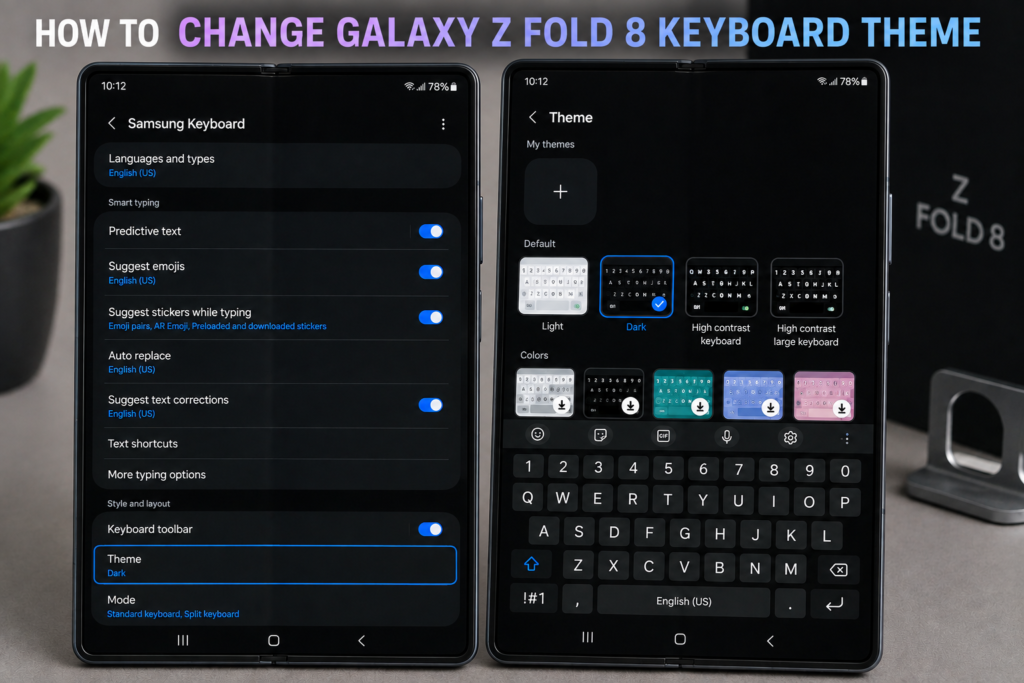
If you’re searching for how to change the keyboard theme on Galaxy Z Fold 8, you’re in the right place. This guide walks you through the process step by step and also explains what to do if the keyboard theme options aren’t showing up.
How to Change Galaxy Z Fold 8 Keyboard Theme
Before changing anything, make sure Samsung Keyboard is selected as your default keyboard. The available theme and customization options can differ if you’re using Gboard or another third-party keyboard.
Quick steps
Settings → General management → Samsung Keyboard settings → Theme
Depending on the One UI version installed on your Fold 8, some menu names may look slightly different. If you don’t immediately see the option, use the Settings search bar and search for Samsung Keyboard settings or Keyboard theme.
Table of Contents
- Check Which Keyboard Your Galaxy Z Fold 8 Is Using
- Open Samsung Keyboard Settings
- Change the Keyboard Theme
- Customize the Galaxy Z Fold 8 Keyboard
- Use High Contrast Keyboard Options
- Change Keyboard Size and Layout
- How to Restore the Default Keyboard Theme
- Galaxy Z Fold 8 Keyboard Theme Not Showing?
- Best Keyboard Setup for the Galaxy Z Fold 8
- Frequently Asked Questions
- Final Thoughts
Check Which Keyboard Your Galaxy Z Fold 8 Is Using {#check-keyboard}
Before looking for keyboard themes, check that the Samsung Keyboard is actually active.
- Open Settings on your Galaxy Z Fold 8.
- Tap General management.
- Select Keyboard list and default.
- Tap Default keyboard.
- Check whether Samsung Keyboard is selected.
If you’re using Gboard or another keyboard, the Samsung Keyboard theme settings won’t necessarily affect what you see when typing.
Once Samsung Keyboard is selected, continue with the steps below.
Open Samsung Keyboard Settings {#open-keyboard-settings}
Samsung has placed most keyboard customization controls inside its dedicated keyboard settings.
The quickest method is:
- Open Settings.
- Tap General management.
- Select Samsung Keyboard settings.
You can also open an app such as Messages, WhatsApp, Samsung Internet, or Notes and bring up the keyboard.
Look for the Settings gear icon on the keyboard toolbar. Tapping it will take you directly to Samsung Keyboard settings.
Can’t find Samsung Keyboard settings?
Don’t worry. Open Settings and use the search field at the top.
Search for:
Samsung Keyboard
or
Keyboard settings
This is often faster than manually scrolling through the Settings menus.
Change the Galaxy Z Fold 8 Keyboard Theme {#change-theme}
Once you’re inside Samsung Keyboard settings, look for the available Theme or keyboard appearance options.
Depending on your Fold 8’s software version, Samsung may present these options somewhat differently.
If the Theme option is available, follow these steps:
- Open Samsung Keyboard settings.
- Tap Theme.
- Browse the available keyboard styles.
- Select the theme you want to try.
- Preview the keyboard if an option is provided.
- Apply the selected theme.
Open an app that requires typing afterward to see the new appearance.
What keyboard themes can you use?
The available choices can vary by software version and Samsung’s customization tools, but you may find options designed around:
- Light appearance
- Dark appearance
- Different key colors
- High-contrast layouts
- Alternative visual styles
- Custom keyboard colors
If your Galaxy Z Fold 8 is updated, the exact choices may differ from screenshots or instructions made for an older Galaxy phone.
Customize the Keyboard Beyond the Theme {#customize-keyboard}
Changing the theme is only one part of making the keyboard your own.
Samsung Keyboard also provides several controls that can change how the keyboard looks and behaves.
Go to:
Settings → General management → Samsung Keyboard settings
Then explore the available customization options.
Depending on the software version, you may be able to adjust things such as:
Keyboard layout
The Fold 8’s large inner screen gives you more room to work with than a conventional smartphone.
You can experiment with different keyboard layouts and positioning options to find one that feels comfortable when the phone is unfolded.
Keyboard size
If the keyboard feels too small or too large, check the keyboard size and layout controls.
This can be particularly useful when switching between the Cover Screen and the large inner display.
Keyboard mode
The Galaxy Z Fold 8 is a foldable phone, so Samsung provides different ways of displaying the keyboard depending on how you’re holding the device.
Try typing on both displays and adjust the layout to suit your preferred setup.
Use the High Contrast Keyboard Option {#high-contrast}
If you want your keys to stand out more clearly, Samsung Keyboard includes accessibility-focused visual options on supported software versions.
Look for:
Samsung Keyboard settings → High contrast keyboard
If available, turn the option on and choose the appearance you prefer.
A high-contrast keyboard can make individual keys easier to distinguish, especially when you’re typing quickly or using the Fold 8 in different lighting conditions.
Change Keyboard Size and Layout on Galaxy Z Fold 8 {#size-layout}
One advantage of owning a foldable phone is that you don’t have to use exactly the same keyboard arrangement all the time.
When the Galaxy Z Fold 8 is open, the wide inner display provides significantly more horizontal space.
To explore the available options:
- Open an app where you can type.
- Bring up Samsung Keyboard.
- Tap the three-dot menu on the keyboard toolbar.
- Open the available keyboard tools or settings.
- Look for Keyboard size and transparency, Modes, or related layout controls.
- Adjust the keyboard until it feels comfortable.
The exact options can depend on your One UI version and Samsung Keyboard version.
Tip for Fold 8 users
If you frequently type on the inner display, don’t simply choose a layout because it looks good.
Try typing a few sentences first. A slightly different keyboard position or size can make a surprisingly big difference during longer messages and documents.
Want a More Personalized Keyboard? Try Good Lock {#good-lock}
If you’re looking for deeper Samsung customization, Good Lock can provide additional personalization options.
Samsung’s customization ecosystem changes over time, so the modules and options available on your Galaxy Z Fold 8 can depend on the current One UI version and region.
For advanced customization, install Good Lock through Samsung’s official Galaxy Store where available and check which keyboard-related customization features are currently supported.
Don’t install random keyboard customization apps simply because they promise features that aren’t available in Samsung’s settings. Third-party keyboard applications can also have different privacy and permissions requirements.
How to Restore the Default Galaxy Z Fold 8 Keyboard Theme {#restore-default}
Changed the keyboard and don’t like the result?
You can simply switch back to the default appearance.
Open:
Settings → General management → Samsung Keyboard settings
Then return to the keyboard’s appearance or theme section and select the standard/default option if available.
If you’ve changed several keyboard settings and want to start over, you can also review Samsung Keyboard’s settings individually and return them to your preferred defaults.
Galaxy Z Fold 8 Keyboard Theme Not Showing? Try These Fixes {#theme-not-showing}
Sometimes the theme option may not appear exactly where you expect it.
This doesn’t necessarily mean something is wrong with your Fold 8.
1. Make sure Samsung Keyboard is selected
Go to:
Settings → General management → Keyboard list and default → Default keyboard
Select Samsung Keyboard.
2. Update Samsung Keyboard
Open the Galaxy Store and check for available updates for Samsung Keyboard or related Samsung apps.
An outdated keyboard component can sometimes cause settings or features to look different.
3. Update your Galaxy Z Fold 8
Go to:
Settings → Software update → Download and install
If a software update is available, install it when convenient and check the keyboard settings again afterward.
4. Restart your Fold 8
It sounds simple, but restarting the phone can clear temporary software glitches affecting Samsung Keyboard.
5. Search Settings
Instead of manually looking through every menu, open Settings and search for:
Samsung Keyboard settings
This can take you directly to the relevant page.
6. Check whether you’re using another keyboard
If Gboard or another keyboard is selected as the default, Samsung Keyboard’s appearance settings won’t change that keyboard.
Best Keyboard Setup for the Galaxy Z Fold 8 {#best-setup}
The best configuration ultimately depends on how you use your Fold 8, but these are worth experimenting with:
| Setting | Suggested approach |
|---|---|
| Keyboard theme | Choose something with clear key separation |
| Keyboard size | Adjust until your thumbs naturally reach the keys |
| High contrast | Useful if you prefer stronger visual separation |
| Keyboard mode | Try different layouts on the Cover and inner screens |
| Toolbar | Keep frequently used tools easily accessible |
| Key borders | Use them if individual keys are difficult to distinguish |
| Predictive text | Keep enabled if you like Samsung’s suggestions |
| Auto-correction | Adjust based on how accurately it handles your typing |
The Fold 8 is unusual because you’re effectively dealing with two different typing experiences: the smaller outer display and the much wider inner screen.
Spend a few minutes configuring both instead of forcing yourself to use the same setup everywhere.
Frequently Asked Questions {#faq}
Can I change the keyboard color on the Galaxy Z Fold 8?
Yes, Samsung Keyboard provides appearance and customization options on supported One UI versions. The exact choices can vary depending on your software version.
Why can’t I find the keyboard theme option on my Galaxy Z Fold 8?
First, check that Samsung Keyboard is your default keyboard. Then open Samsung Keyboard settings and look through the available appearance options. Samsung can also change menu names and locations between One UI versions.
Can I use a custom picture as my Galaxy Z Fold 8 keyboard background?
Samsung Keyboard’s available background customization depends on the version of Samsung Keyboard and One UI installed. Check the current customization options on your device rather than relying on menus from older Galaxy models.
Does changing the keyboard theme change the entire phone theme?
No. Keyboard customization primarily affects the appearance of Samsung Keyboard. Your system-wide wallpaper, icons and other interface elements are controlled separately.
Can I change the keyboard separately on the Cover Screen and inner display?
The Fold 8 can provide different keyboard layouts and modes depending on how the device is being used. Available controls can vary by One UI version, so check the keyboard’s layout and mode settings on your device.
Will changing the keyboard theme affect typing performance?
Normally, changing the visual appearance doesn’t fundamentally change how the keyboard processes your typing. Features such as predictive text, auto-correction and other input settings are controlled separately.
Final Thoughts {#final-thoughts}
You don’t have to settle for the stock keyboard appearance on your Samsung Galaxy Z Fold 8.
A few minutes inside Samsung Keyboard settings can give you a cleaner layout, different visual appearance and a more comfortable typing experience across both the outer and inner displays.
The easiest place to start is:
Settings → General management → Samsung Keyboard settings
From there, explore the available theme, layout, size, contrast and customization controls.
And if a particular option isn’t available, don’t assume your Fold 8 is faulty. Samsung regularly changes its menus and customization features with One UI updates, so the exact names and locations can differ between software versions.
