
If your HP DeskJet F4240 starts a cleaning or maintenance cycle whenever you turn it on, it can be frustrating—especially when you need to print something quickly.

Automatic cleaning is normally part of the printer’s maintenance system. It helps prevent dried ink, blocked nozzles, faded colors, and uneven prints. However, frequent cleaning can consume extra ink.
The good news is that you can often reduce unnecessary cleaning cycles without interfering with the printer’s normal maintenance.
Why Does HP DeskJet F4240 Keep Cleaning Itself?
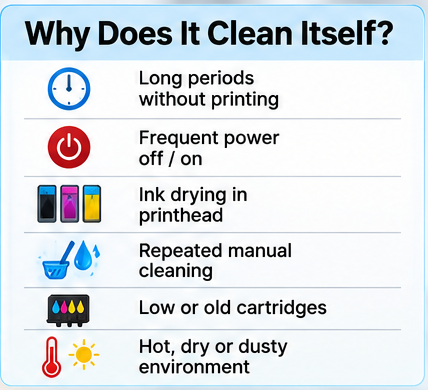
Automatic maintenance may occur for several reasons, including:
- The printer has been unused for a long time
- The printer is frequently switched off and on
- Ink has started drying around the printhead
- Manual cleaning has been performed repeatedly
- Ink cartridges are low, old, or incorrectly installed
- The printer is being used in a hot, dry, or dusty location
Occasional cleaning is normal. Constant cleaning, however, may indicate an underlying problem.
Can You Disable Automatic Cleaning?
Usually, no.
Most inkjet printers control automatic maintenance internally, and there is no recommended setting for completely disabling it.

Trying to bypass or modify the cleaning system can cause print-quality problems or damage the printhead. A better approach is to reduce the conditions that cause excessive maintenance.
5 Ways to Reduce Cleaning Frequency
1. Keep the Printer in Standby Mode
If possible, avoid repeatedly disconnecting the printer from power.

Allowing it to enter its normal standby or sleep mode can be preferable to completely powering it down after every use.
2. Print Something Regularly
Long periods of inactivity can allow ink to dry around the printhead.
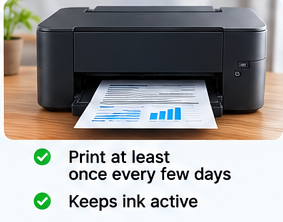
Printing a simple page every few days can help keep the ink system active. You don’t need to print large documents just for maintenance.
3. Don’t Run Manual Cleaning Too Often
Manual cleaning should generally be used when print quality actually requires it.
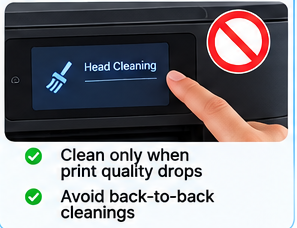
Running several cleaning cycles consecutively can consume ink without necessarily solving the underlying problem.
4. Choose a Suitable Location
Keep HP DeskJet F4240 away from excessive heat, direct sunlight, dusty areas, and strong dry airflow.

A stable indoor environment can help protect the ink system and printhead.
5. Check the Ink Cartridges
If frequent cleaning started after replacing an ink cartridge, check that:
- The cartridge is installed correctly
- The printer recognizes the cartridge
- There is sufficient ink remaining
- There is no visible installation problem
If the problem continues, the cartridge or ink-delivery system may need further attention.

Is Automatic Cleaning Wasting Ink?
Yes, cleaning uses some ink, but that doesn’t mean the printer is wasting it unnecessarily.
The maintenance process is intended to keep the printhead working correctly and prevent blocked nozzles. Completely preventing maintenance can eventually create bigger print-quality problems.

However, if HP DeskJet F4240 performs a cleaning cycle unusually often, it’s worth finding out why rather than simply accepting the behavior.
When Should You Investigate Further?
Look into the problem if your printer:
- Cleans almost every time it starts
- Consumes ink much faster than expected
- Takes a long time before every print job
- Still produces poor-quality prints after cleaning
- Repeatedly starts maintenance without improvement
These symptoms can point to an ink-flow, cartridge, printhead, or printer-maintenance issue.
Frequently Asked Questions
Why does HP DeskJet F4240 clean itself when I turn it on?
The printer may perform automatic maintenance after being powered off, especially following periods of inactivity.
Can I completely stop the cleaning cycle?
Usually not. Automatic maintenance is controlled by the printer and may not have a user-accessible disable option.
Does leaving the printer on reduce cleaning?
Keeping the printer in its normal standby mode may reduce some startup-related maintenance compared with repeatedly switching it completely off and on.
How often should I use my printer?
Regular light use can help prevent ink from sitting unused for extended periods. A simple page every few days can be sufficient for many users.
Final Thoughts
If HP DeskJet F4240 keeps cleaning itself, don’t immediately assume the printer is faulty. Automatic maintenance is normally intended to protect print quality.

Start by avoiding unnecessary power cycling, printing occasionally, limiting manual cleaning, and keeping the printer in a suitable environment. If cleaning remains excessive or print quality continues to deteriorate, investigate the ink system and printer condition rather than trying to disable the maintenance process.

At FixItEarth, we focus on practical technology troubleshooting and straightforward solutions that help users solve everyday device problems without unnecessary complications.
