Android is known for its flexibility, customization options, and powerful features. While every major Android update introduces exciting capabilities, many of the most useful productivity tools have actually been available for years. The problem is that most users simply don’t know they exist.
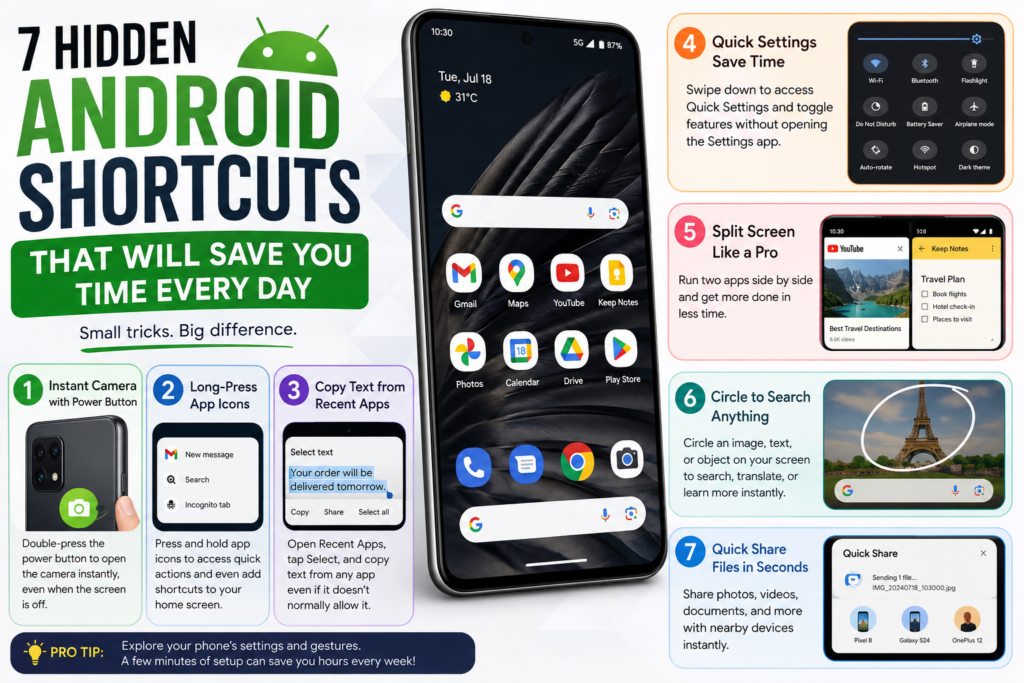
If you use your Android phone every day for work, studying, photography, or entertainment, learning a few built-in shortcuts can make a noticeable difference. These features reduce unnecessary taps, eliminate repetitive tasks, and help you accomplish more in less time—without downloading a single app.
Whether you’re using a Samsung Galaxy, Google Pixel, OnePlus, Xiaomi, Motorola, Vivo, Oppo, or any other Android device, here are seven Android shortcuts that deserve a place in your daily routine.
1. Launch Your Camera Instantly with the Power Button
Some moments last only a few seconds. By the time you unlock your phone, search for the Camera app, and wait for it to open, the opportunity may already be gone.
That’s why enabling the camera shortcut is one of the smartest things you can do.
Most Android smartphones allow you to launch the camera simply by double-pressing the power button. Even if your phone is locked or the display is turned off, the camera opens almost instantly.
This shortcut is perfect for:
- Capturing unexpected moments
- Taking quick photos while traveling
- Recording videos without delay
- Scanning QR codes instantly
Although the exact menu differs between manufacturers, you can usually find this option by searching for Camera Shortcut or Power Button Gesture in the Settings app.
2. Long-Press App Icons for Faster Actions
Did you know many Android apps include hidden shortcuts?
Instead of opening an app and navigating through menus, simply press and hold its icon on your home screen.
You’ll often see quick actions like:
- Compose a new Gmail message
- Start navigation in Google Maps
- Open YouTube Shorts
- Create a calendar event
- Start a new note
- Scan a QR code
These shortcuts save several taps every time.
An even better trick is to drag your favorite shortcut directly onto the home screen, creating a dedicated icon for that specific task.
For example, if you frequently compose emails, you can create a “New Email” shortcut instead of opening Gmail first.
3. Copy Text Directly from the Recent Apps Screen
Have you ever tried copying text from an app only to discover it doesn’t allow text selection?
Fortunately, Android offers an easier solution.
On supported devices, especially Google Pixel phones, you can open the Recent Apps screen, tap Select, and highlight text directly from the app preview.
This feature is incredibly useful for copying:
- Tracking numbers
- OTP codes
- Addresses
- Product names
- Recipes
- Social media captions
Instead of taking screenshots or typing everything manually, you can copy the information in seconds.
It’s one of Android’s most underrated productivity tools.
4. Use Quick Settings Instead of Digging Through Settings
Many users still open the Settings app every time they want to enable Bluetooth, activate Do Not Disturb, or turn on Battery Saver.
That takes far longer than necessary.
Simply swipe down from the top of your display to access Quick Settings.
From there you can instantly toggle features such as:
- Wi-Fi
- Bluetooth
- Flashlight
- Airplane Mode
- Screen Recorder
- Hotspot
- Dark Mode
- Battery Saver
Better yet, customize the Quick Settings panel so your most-used controls always appear at the top.
Spending just a minute organizing these tiles can save you countless taps every day.
5. Use Split Screen for Real Multitasking
Modern smartphones are powerful enough to run two apps simultaneously.
Android’s Split Screen feature allows you to multitask much more efficiently.
Some practical examples include:
- Watching YouTube while taking notes
- Comparing shopping prices
- Reading emails while updating spreadsheets
- Following recipes while creating a grocery list
- Browsing the web while chatting with friends
To activate Split Screen on most Android phones:
- Open your first app.
- Access Recent Apps.
- Tap the app icon.
- Select Split Screen.
- Choose the second app.
You can resize both windows to prioritize whichever app you’re currently using.
Once you start using Split Screen regularly, switching back and forth between apps becomes much less frustrating.
6. Search Anything on Your Screen with Circle to Search
One of Android’s smartest recent additions is Circle to Search.
Instead of opening Google, copying text, or taking screenshots, you can search almost anything directly from your screen.
Simply activate Circle to Search and:
- Circle an object
- Highlight text
- Tap an image
- Translate foreign languages
- Identify products
- Search landmarks
- Learn about celebrities
- Compare prices instantly
The search results appear as an overlay, allowing you to continue using your current app without interruption.
This saves time and keeps your workflow smooth.
Keep in mind that Circle to Search is currently available only on supported Android devices, including many newer Google Pixel and Samsung Galaxy smartphones.
7. Share Files Quickly with Quick Share
Sending files between Android devices has become much easier thanks to Quick Share.
Whether you’re transferring:
- Photos
- Videos
- PDFs
- Documents
- Music
- Presentations
Quick Share lets you send them wirelessly in just a few taps.
Unlike messaging apps or cloud storage, Quick Share transfers files directly between nearby compatible devices, making it significantly faster for large files.
It also works with many Chromebooks and supported Windows PCs, helping you move files without cables or USB drives.
If you frequently switch between your phone and computer, this feature can become an essential part of your workflow.
Small Android Features Can Make a Big Difference
Many people focus on new Android versions, AI tools, or expensive flagship smartphones, but some of the biggest productivity improvements come from features that have been built into Android all along.
Whether it’s opening the camera instantly, copying text without screenshots, multitasking with Split Screen, or transferring files in seconds, these shortcuts can save several minutes every day.
The best part? Most of them require no additional apps or subscriptions.
Take a few minutes to explore your phone’s settings and enable these hidden features. Once they become part of your daily routine, you’ll wonder how you ever managed without them.
Frequently Asked Questions
Do these shortcuts work on all Android phones?
Most shortcuts are available on modern Android devices, although the exact location of the settings may vary depending on the manufacturer.
Is Circle to Search available on every Android device?
No. It is currently supported on select Google Pixel, Samsung Galaxy, and a growing number of newer Android smartphones.
Can I customize Quick Settings?
Yes. Nearly every Android phone lets you rearrange and add Quick Settings tiles to suit your needs.
Is Quick Share the same as Nearby Share?
Google has merged Nearby Share into Quick Share, making file sharing easier across Android devices, Chromebooks, and compatible Windows PCs.
Which Android shortcut saves the most time?
For many users, the camera shortcut and Quick Settings panel provide the biggest day-to-day productivity improvements because they’re used multiple times throughout the day.
