Is your Nintendo Switch 2 not turning on? Are you seeing a completely black screen, no charging response, or a console that refuses to wake up from Sleep Mode?
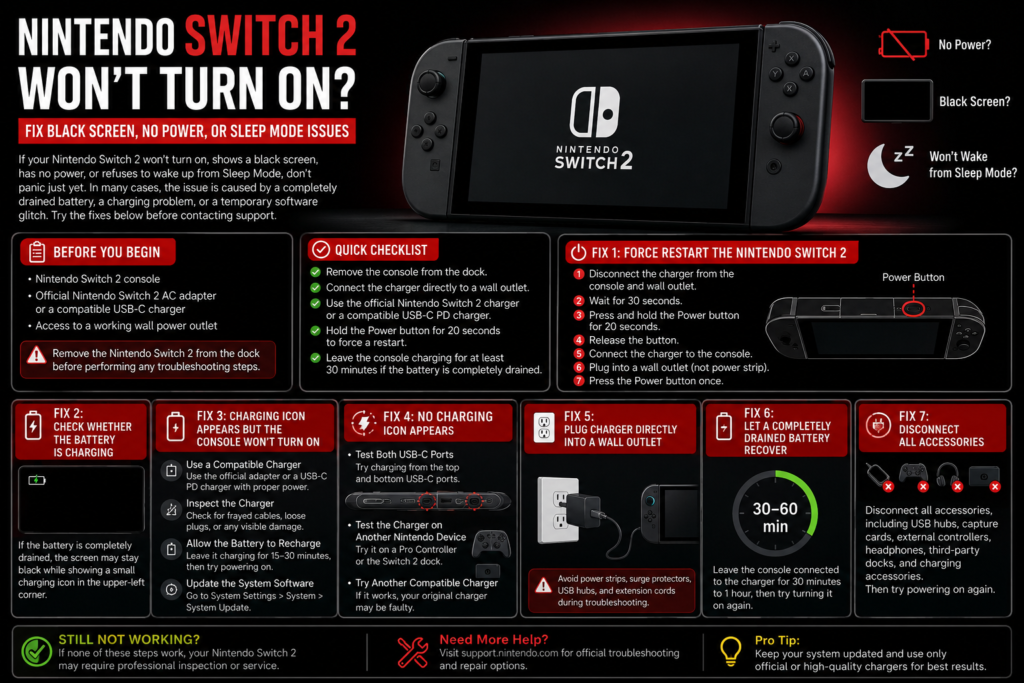
Don’t assume your Nintendo Switch 2 is damaged just yet. Many power-related problems are caused by simple issues like a drained battery, charging problems, frozen system software, or accessories interfering with startup.
In this troubleshooting guide, we will walk you through every possible solution to fix a Nintendo Switch 2 that won’t power on, including black screen problems, charging failures, frozen screens, and Sleep Mode issues.
Follow these steps carefully, starting with the easiest fixes first.
Before You Start Troubleshooting
Before trying any fixes, prepare the following:
- Nintendo Switch 2 console
- Official Nintendo Switch 2 AC adapter or a compatible USB-C Power Delivery charger
- Working wall power outlet
- Charging cable without visible damage
Before continuing:
- Remove the Nintendo Switch 2 from the dock.
- Disconnect all accessories.
- Connect the charger directly to a wall outlet.
Important: Avoid using power strips, USB hubs, or extension cables while troubleshooting because they can sometimes affect power delivery.
Quick Fix Checklist
Try these quick solutions first:
✅ Remove the Switch 2 from the dock
✅ Connect the charger directly to the console
✅ Use an official Nintendo charger if available
✅ Hold the Power button for 20 seconds
✅ Leave the console charging for at least 30 minutes
✅ Disconnect third-party accessories
✅ Try another compatible USB-C charger
If your Nintendo Switch 2 still does not turn on, continue with the detailed fixes below.
Fix 1: Force Restart Your Nintendo Switch 2
Sometimes the console may appear completely dead because the operating system has frozen.
A force restart can refresh the system and bring the console back without deleting your games or saved data.
Follow these steps:
- Disconnect the charger from the Nintendo Switch 2.
- Wait around 30 seconds.
- Press and hold the Power button for 20 seconds.
- Release the Power button.
- Connect the charger directly to the console.
- Press the Power button once.
If the problem was caused by a temporary software freeze, the Nintendo Switch 2 should start normally.
Fix 2: Check If Your Nintendo Switch 2 Is Actually Charging
A completely drained battery can make the console look like it has no power.
After connecting the charger, check the screen carefully.
You may notice:
- A small charging indicator
- A brief battery symbol
- A black screen that appears for several minutes before startup
If the battery has reached 0%, the console may need some charging time before it responds.
Leave it connected for 15–30 minutes and try turning it on again.
Fix 3: Nintendo Switch 2 Shows Charging Icon But Won’t Start
If you see a charging indicator but the console does not boot, the device is receiving power. The problem may be related to battery level, software, or startup issues.
Use the Correct Charger
Make sure you are using:
- Official Nintendo Switch 2 AC adapter
- Compatible USB-C PD charger with enough power output
A regular smartphone charger may not provide enough power for proper console charging.
Check Your Charging Cable
Inspect the charger and cable for:
- Damaged insulation
- Bent USB-C connector
- Loose connection
- Signs of overheating
- Broken charging pins
A damaged cable can prevent stable charging even if the connector fits.
Give the Battery More Time
If the battery was completely empty:
- Keep charging for 30 minutes
- Try powering on again
- Leave it connected longer if needed
A deeply discharged battery may require extra time before the console responds.
Fix 4: Nintendo Switch 2 Has a Black Screen With No Display
A black screen does not always mean the display is damaged.
Possible causes include:
- System freeze
- Battery completely drained
- Failed wake-up from Sleep Mode
- Temporary software issue
Try this:
- Hold the Power button for 20 seconds.
- Release it.
- Wait a few seconds.
- Press the Power button once again.
If the console vibrates, makes sounds, or shows charging activity but the screen remains black, continue troubleshooting.
Fix 5: Update Nintendo Switch 2 System Software
If your console eventually starts, install the latest system update.
Software updates often include fixes for:
- Sleep Mode problems
- Charging issues
- System freezes
- Power management bugs
To check for updates:
System Settings → System → System Update
Keeping your console updated can prevent many unexpected startup problems.
Fix 6: No Charging Icon Appears on Nintendo Switch 2
If nothing appears after connecting the charger, check the charging system.
Try these steps:
Test Another Wall Outlet
The outlet itself may be the problem.
Connect the charger directly to another working wall socket.
Try Another Compatible Charger
If possible, test another USB-C PD charger.
If the second charger works, your original adapter may be faulty.
Check USB-C Ports
The Nintendo Switch 2 includes USB-C connections that may be affected by:
- Dust
- Debris
- Physical damage
Inspect the ports carefully.
Do not insert metal objects into the charging port.
Fix 7: Disconnect All Accessories
External devices can sometimes prevent normal startup.
Remove:
- USB-C hubs
- Capture cards
- External controllers
- Headphones
- Third-party docks
- Charging accessories
Then connect only:
- Nintendo Switch 2 console
- Compatible charger
Try turning it on again.
Fix 8: Check for Physical or Liquid Damage
If your Nintendo Switch 2 recently experienced:
- A drop
- Water exposure
- Heavy impact
- Extreme heat
the problem may be hardware-related.
Check for:
- Cracked casing
- Damaged USB-C port
- Unusual smell
- Signs of moisture
- Excessive heating
Avoid opening the console yourself because it may damage internal components and affect warranty coverage.
Fix 9: Nintendo Switch 2 Still Won’t Turn On?
If none of the above solutions work and your console still:
- Shows a permanent black screen
- Does not charge
- Does not wake from Sleep Mode
- Does not respond to the Power button
then professional repair may be required.
Before contacting Nintendo Support:
- Keep the charger available
- Note what troubleshooting steps you tried
- Mention any recent drops or liquid exposure
This information can help technicians diagnose the issue faster.
Frequently Asked Questions
Why is my Nintendo Switch 2 screen black but the console won’t turn on?
A black screen is commonly caused by a frozen system, drained battery, charging problem, or temporary software issue. A force restart often fixes temporary freezes.
How do I wake my Nintendo Switch 2 from Sleep Mode?
Hold the Power button for around 20 seconds to force a restart, then press the Power button normally to start the console again.
How long should I charge a dead Nintendo Switch 2?
Charge it for at least 30 minutes before trying to turn it on. If the battery was completely drained for a long time, it may require additional charging time.
Can I use my old Nintendo Switch charger with Switch 2?
A compatible Nintendo charger may work for charging the console, but dock and TV Mode compatibility may depend on the charger specifications.
What if my Nintendo Switch 2 does not show a charging icon?
Try another wall outlet, test another compatible charger, inspect the USB-C port, and perform a force restart.
Should I replace the Nintendo Switch 2 battery myself?
Battery replacement is not recommended unless you have proper electronics repair experience. Contact Nintendo Support or an authorized repair center if the battery appears faulty.
Final Thoughts
A Nintendo Switch 2 that suddenly refuses to turn on does not always mean the console has failed.
In many cases, the cause is something simple like a fully drained battery, a frozen operating system, an incompatible charger, or a temporary Sleep Mode issue.
Start with the basic fixes: force restart the console, charge it properly, remove accessories, and test the power source. These steps solve many common startup problems without requiring repair.
If your Nintendo Switch 2 still remains completely unresponsive after following this guide, professional diagnosis is the safest next step.
Avoid opening the console unless you have experience repairing electronics, as incorrect handling can cause additional damage.
