Android Auto has become much more than a way to display Google Maps on your car’s infotainment screen. It now offers intelligent features that reduce distractions, simplify common tasks, and make every journey more enjoyable.
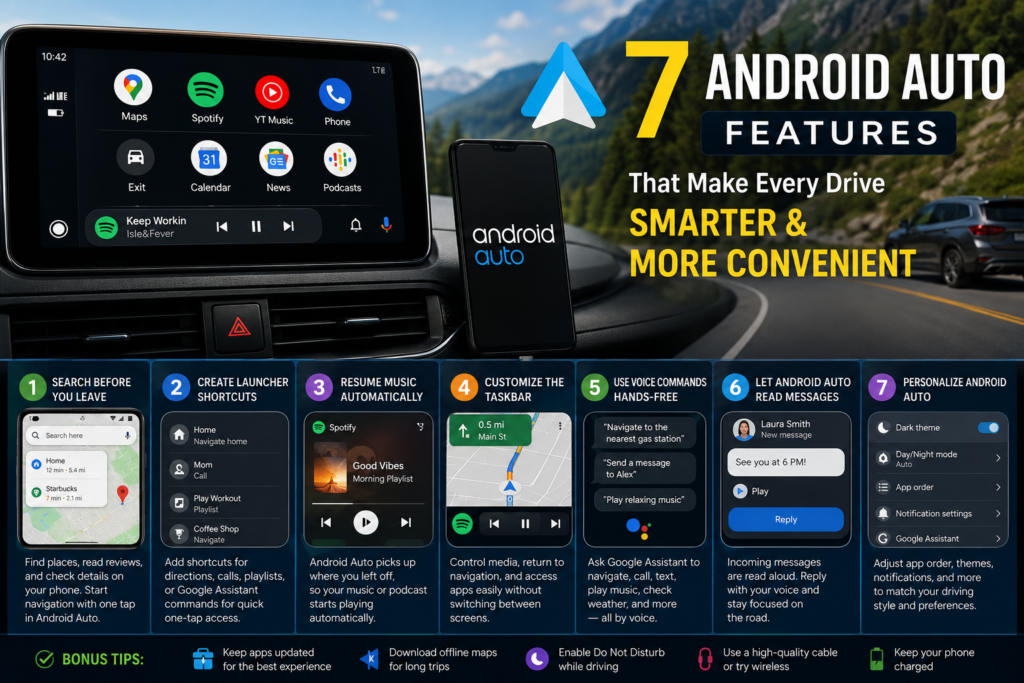
While most drivers use Android Auto for navigation and music, many of its best features remain hidden in the settings menu. Enabling just a few of them can save time every day while also helping you stay focused on the road.
Whether you’re commuting to work, taking a weekend road trip, or simply driving across town, these Android Auto features are worth trying.
1. Search Your Destination Before You Leave
Entering an address using your car’s touchscreen can be slow and distracting.
Instead, search for your destination in Google Maps on your Android phone before you get into the car. You can read reviews, verify business hours, check photos, and save the location in just a few seconds.
Once Android Auto connects, your recent destinations automatically appear, allowing you to begin navigation with a single tap.
Why it’s useful
- Faster route selection
- Easier address verification
- Better access to reviews and business information
- Less time spent using the car’s display
2. Create Launcher Shortcuts for Everyday Tasks
If you regularly perform the same actions while driving, Android Auto lets you place shortcuts directly on the launcher.
For example, you can create shortcuts to:
- Navigate home
- Navigate to work
- Call a family member
- Open your favorite playlist
- Launch Google Assistant commands
Having these shortcuts available saves several taps every time you start your journey.
3. Resume Music Automatically
One of Android Auto’s most convenient features is automatic media playback.
Instead of manually opening Spotify, YouTube Music, Amazon Music, or Audible every time you start the car, Android Auto can continue exactly where you stopped listening.
Whether you’re halfway through a podcast or listening to your favorite playlist, your entertainment begins automatically after connecting.
This creates a much smoother driving experience.
4. Customize the Taskbar for Faster Controls
Android Auto includes a compact taskbar that lets you control media playback while keeping navigation visible.
Instead of constantly switching between apps, you can:
- Pause music
- Skip songs
- Return to navigation
- Check what’s currently playing
Keeping important controls within easy reach reduces distractions and makes multitasking much easier.
5. Use Voice Commands for Almost Everything
Modern versions of Android Auto support powerful voice controls that allow you to perform many actions without touching the screen.
You can ask your assistant to:
- Find nearby restaurants
- Start navigation
- Send messages
- Call contacts
- Play music
- Read notifications
- Check the weather
Using voice commands is often quicker than navigating through menus and helps you keep your hands on the steering wheel.
6. Let Android Auto Read Your Messages
Reading text messages while driving is both distracting and unsafe.
Android Auto solves this problem by reading incoming notifications aloud.
If you want to reply, simply dictate your response using your voice. The assistant converts your speech into a message and sends it automatically.
This allows you to stay connected without taking your eyes off the road.
7. Personalize Android Auto to Match Your Driving Style
Many people never explore Android Auto’s settings, but spending a few minutes customizing the interface can significantly improve your experience.
Consider adjusting:
- App order
- Dark mode
- Notification preferences
- Media controls
- Voice assistant settings
- Launcher shortcuts
A personalized dashboard means less searching and quicker access to the tools you use most often.
Bonus Tips for Android Auto Users
If you want to get even more from Android Auto, try these simple improvements:
- Keep Google Maps updated for the latest features.
- Download offline maps before long trips.
- Enable Do Not Disturb while driving.
- Keep your phone charged for reliable performance.
- Use a high-quality USB cable if your vehicle doesn’t support wireless Android Auto.
- Regularly update Android Auto and your phone’s software.
Final Thoughts
Android Auto isn’t just about navigation—it can make every drive more organized, less distracting, and more enjoyable.
From creating custom shortcuts and automating music playback to using hands-free messaging and voice commands, these features eliminate small but repetitive tasks that add up over time.
Take a few minutes to explore Android Auto’s settings, and you’ll likely discover tools that make your daily commute smoother and safer.
Frequently Asked Questions
Does Android Auto work wirelessly?
Many newer vehicles support wireless Android Auto. Older vehicles may require a USB connection.
Can I customize the Android Auto home screen?
Yes. You can rearrange compatible apps and create launcher shortcuts for frequently used actions.
Which music apps work with Android Auto?
Popular services such as Spotify, YouTube Music, Amazon Music, Audible, Pandora, and several others are supported.
Is Android Auto free?
Yes. Android Auto is free to use, although some connected apps or streaming services may require subscriptions.
Is Android Auto safe to use while driving?
When used as intended—with voice controls and minimal interaction—it helps reduce distractions compared to handling your phone directly.
