
The Galaxy Z Fold8 already has a seriously capable camera system, so I didn’t expect to look for another camera app after getting the phone. But if you’ve spent any time experimenting with Android photography, you’ve probably heard of Google Camera, better known as GCam.
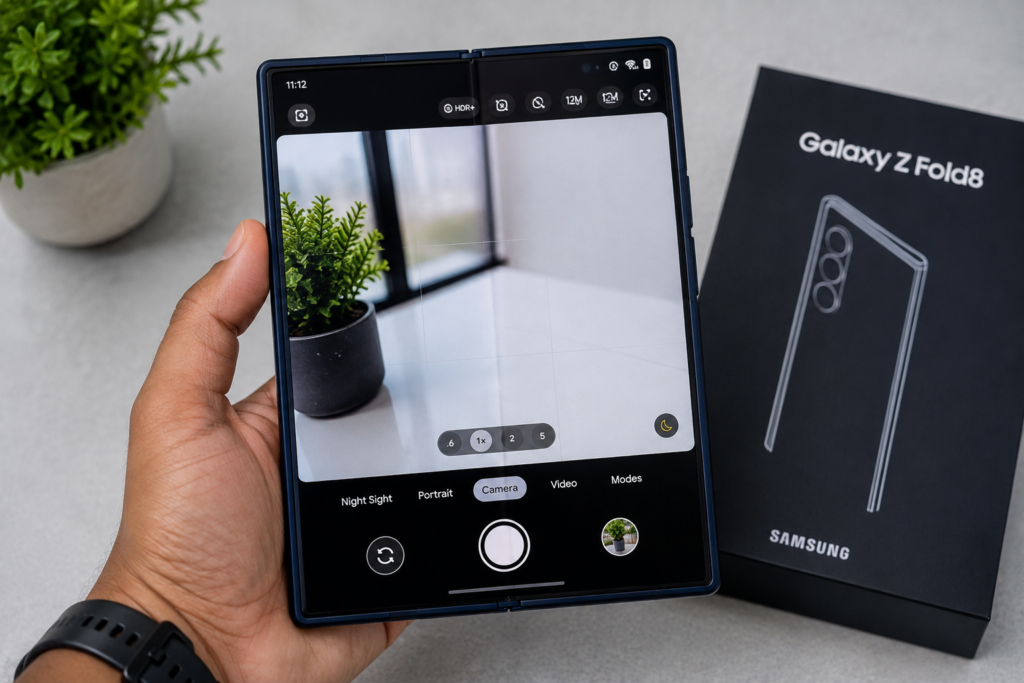
GCam is interesting because its image-processing approach can produce a different look from Samsung’s Camera app, particularly in situations where HDR, exposure and computational photography matter.
The important thing with the Galaxy Z Fold8, though, is that GCam isn’t an official Samsung app. Compatibility depends on the particular port and software build, so there isn’t one APK that I can honestly say will work perfectly for every Fold8.
Samsung’s official specifications list a 50MP wide camera and 50MP ultra-wide camera, along with 10MP cameras on both the cover and main screens. The rear wide camera also supports OIS and 2x optical-quality zoom.
So, if you’re curious about trying GCam on your Fold8, here’s what you need to know.
Table of Contents
- What Is GCam?
- Why Try GCam on the Galaxy Z Fold8?
- Is GCam Compatible With the Galaxy Z Fold8?
- Before Installing GCam
- How to Install GCam on Galaxy Z Fold8
- Give GCam the Required Permissions
- What to Do If GCam Crashes
- GCam vs Samsung Camera
- Galaxy Z Fold8 GCam Tips
- Should You Keep GCam Installed?
- Frequently Asked Questions
- Conclusion
What Is GCam?
GCam is the nickname commonly used for Google Camera and the various community-developed ports based on it.
Google’s Pixel phones are known for relying heavily on computational photography. Rather than simply depending on the camera sensor, the software processes multiple frames and uses algorithms to improve things such as HDR, exposure, noise reduction and night photography.
That’s why GCam ports have become popular among Android enthusiasts.
The catch is that these aren’t official Google Camera releases for Samsung’s foldable phones. Developers modify the application to work with other Android hardware, and compatibility can vary considerably.
That’s particularly important with the Z Fold8 because it has several cameras and a completely different form factor from a conventional Pixel phone.
Why Try GCam on the Galaxy Z Fold8?
Samsung’s own camera application should be your starting point.
The Fold8 has a dual 50MP rear-camera setup, including a 50MP wide camera and a 50MP ultra-wide camera. Samsung also uses its ProVisual Engine for image and video processing, including low-light improvements.
So why install another camera app?
For me, the attraction is simply having another option.
GCam can sometimes produce a different balance of highlights, shadows, colours and detail. You may also prefer its processing in certain lighting conditions.
It doesn’t mean GCam will automatically produce better photos.
In fact, depending on the port, some Fold8 cameras or features may not work properly. That’s why I’d treat GCam as a second camera app rather than a replacement for Samsung Camera.
Is GCam Compatible With the Galaxy Z Fold8?
This is the part worth paying attention to.
The Galaxy Z Fold8 is powered by Snapdragon 8 Elite Gen 5 for Galaxy, and Samsung’s official specifications confirm its dual 50MP rear-camera system.
However, GCam ports aren’t developed specifically by Samsung for the Fold8.
As a result, you might encounter situations where:
- The app opens normally.
- The main camera works but another camera doesn’t.
- Some zoom levels aren’t available.
- HDR works differently from Samsung Camera.
- The app crashes when switching cameras.
- Video features aren’t fully supported.
- The cover and inner-screen cameras behave differently.
- A particular GCam build works after a software update and then needs another compatible build later.
That’s normal for unofficial camera ports.
Don’t assume that an APK advertised as “GCam for Galaxy Z Fold8” is automatically compatible.
Before Installing GCam on Your Galaxy Z Fold8
I’d recommend doing a few things before experimenting.
1. Update the phone
Go to:
Settings → Software update → Download and install
Installing the latest available Samsung software first can eliminate problems caused by an outdated system.
2. Keep Samsung Camera
Don’t uninstall or disable Samsung’s Camera app.
It’s still the camera application designed specifically around the Fold8’s hardware.
3. Download only from a reputable source
GCam ports are modified applications, so source selection matters.
Avoid random APK websites promising a “perfect” or “100% working” Fold8 GCam.
If you’re researching available ports, use established Android-camera development communities and check recent user reports for the exact device and Android version.
4. Check the developer’s compatibility information
A GCam build working on another Snapdragon Samsung phone doesn’t necessarily mean it’ll work correctly on the Fold8.
How to Install GCam on Galaxy Z Fold8
Once you’ve found a GCam build specifically reported to work with your Fold8, installation is relatively straightforward.
Step 1: Download the APK
Download the compatible GCam APK from the developer or a well-established Android development source.
Before opening it, make sure you know exactly what file you’re installing.
If the download comes from an unknown website, I’d skip it.
Step 2: Open the downloaded file
Use your browser’s download list or the Files app to locate the APK.
Tap the file to begin installation.
Step 3: Allow installation from that source if Android asks
Modern Android versions don’t use one universal “Unknown sources” switch for everything.
Instead, Android can ask whether a particular application—such as your browser or file manager—is allowed to install an app.
If you trust the source, you can grant that permission temporarily.
Don’t enable installation permissions for random apps.
Step 4: Install the application
Follow the Android installation prompt.
When the installation finishes, you’ll see the GCam icon in your app drawer.
Step 5: Open GCam
Launch the application.
Android may ask for permissions such as:
- Camera
- Microphone
- Photos and videos
Only grant permissions that make sense for the features you’re actually going to use.
Give GCam the Required Permissions
The first launch can sometimes feel a little different from Samsung Camera.
If you want to take photographs, GCam needs camera access.
If you’re recording video with sound, it needs microphone access.
For photos and videos, Android’s current permission system may present media-access options depending on the application and Android version.
If GCam starts but immediately closes, don’t keep changing random settings.
First try restarting the phone and launching it again.
What to Do If GCam Crashes on Galaxy Z Fold8
This is probably the most useful part of the whole experiment.
Because GCam is an unofficial port, crashes aren’t unusual.
Fix 1: Clear GCam’s app data
Go to:
Settings → Apps → GCam → Storage
Then try:
Clear cache
If that doesn’t help, you can try Clear data.
Keep in mind that clearing app data removes the application’s saved settings.
Fix 2: Try a different compatible build
If GCam crashes immediately after opening, the problem may simply be compatibility.
Don’t assume your Fold8 is defective.
A different port or build may behave differently.
This is one reason I recommend keeping Samsung Camera installed.
Fix 3: Don’t load random configuration files
You’ll find GCam configuration files online that claim to provide the perfect settings.
I’d be careful with these.
A configuration created for another Samsung model, Android version or camera setup may cause instability rather than improve the photographs.
Start with the application’s default settings.
Once you know the app works, experiment one setting at a time.
Fix 4: Restart the phone
It sounds ridiculously simple, but it can help after installing a new camera application.
Restart your Fold8 and try again.
GCam vs Samsung Camera on Galaxy Z Fold8
This isn’t really a case of one app being universally better.
| Feature | Samsung Camera | GCam Port |
|---|---|---|
| Designed for Fold8 | ✅ | ❌ |
| Samsung camera features | ✅ | Depends on port |
| Rear camera support | Full | Depends on port |
| Cover camera | Supported | Depends on port |
| Inner camera | Supported | Depends on port |
| Samsung-specific features | ✅ | Usually limited |
| Computational photography | Samsung processing | GCam processing |
| Stability | Generally better | Varies |
| Updates | Samsung system/app updates | Depends on developer |
Samsung’s software has a major advantage: it was built around the Fold8’s hardware.
GCam’s advantage is experimentation.
That’s how I’d look at it.
Galaxy Z Fold8 GCam Tips
Once you’ve got a compatible version running, don’t immediately change 20 settings.
Spend a little time comparing photographs.
Try the same scene with both apps
Take one photograph using Samsung Camera and another using GCam.
Try:
- Daylight
- Indoor lighting
- Low light
- Portrait-style subjects
- Landscapes
- Moving subjects
Then compare them on the Fold8’s large internal display.
Samsung specifically promotes the Fold8’s main screen as a large 7.6-inch display, making it particularly useful for examining photographs after shooting.
Test different cameras
Don’t assume that every camera exposed by Samsung Camera will be available through GCam.
The Fold8 has:
- 50MP wide camera
- 50MP ultra-wide camera
- 10MP cover camera
- 10MP main-screen camera
Test each one individually if your GCam build exposes them.
Don’t judge GCam from one photograph
Computational photography can behave very differently depending on the scene.
Take several samples before deciding whether you actually prefer it.
One More Reason the Fold8 Is Interesting for GCam
The Fold8 isn’t just another slab phone.
Its folding design gives you photography options that traditional phones don’t have.
Samsung’s FlexCam features are built around the ability to position the phone at different angles, while Dual Recording can display both sides of a scene.
A third-party camera application may not reproduce those Samsung-specific features.
That’s why I’d keep Samsung Camera around even if GCam becomes your favourite for still photography.
Should You Keep GCam Installed?
After testing it, the answer is pretty simple.
Keep it if you genuinely prefer the results.
There’s no benefit in keeping a second camera app just because someone online says it’s better.
For many Fold8 owners, Samsung Camera will remain the easiest and most complete option because it has access to the phone’s camera hardware and Samsung-specific features.
For photography enthusiasts, however, having a compatible GCam build available can be fun.
Think of it as an additional tool rather than a replacement.
Frequently Asked Questions
Does GCam work on the Galaxy Z Fold8?
It can, but compatibility depends on the specific GCam port, Android version and camera support exposed by that build. There isn’t a single official Google Camera version specifically released for the Galaxy Z Fold8.
Is GCam better than Samsung Camera?
Not necessarily.
Some photographs may look better to you with GCam, while Samsung Camera can provide better compatibility with Fold8-specific features.
Can GCam access all four Fold8 cameras?
Not necessarily. Camera availability depends on the particular port and how it interacts with the Fold8’s camera system.
Will installing GCam remove Samsung Camera?
No. Installing a separate camera application doesn’t require removing Samsung Camera.
Can I uninstall GCam later?
Yes. You can remove it like any other Android application.
Is GCam an official Samsung application?
No. Samsung’s official camera application is the supported option for the Galaxy Z Fold8. GCam ports are modified/community-developed versions of Google Camera.
Why does my GCam keep crashing?
The most likely explanation is compatibility with the particular port, configuration or camera API. Try clearing the app’s data, restarting the phone, or using a different build that specifically reports Fold8 compatibility.
Final Thoughts
The Galaxy Z Fold8 doesn’t need GCam to take good photographs.
Samsung has put a 50MP wide camera, 50MP ultra-wide camera, OIS and its ProVisual processing system into the phone, so the stock camera is already the sensible place to start.
But that’s not really why people experiment with GCam.
The fun is in finding out whether Google’s image-processing approach gives you the look you prefer.
If you decide to try it, take your time. Start with a reputable, Fold8-compatible build, leave the default settings alone initially, and compare the results directly against Samsung Camera.
And if GCam turns out to be unstable on your particular Fold8 software version, there’s nothing wrong with going back to Samsung Camera. A stable camera that works every time is more useful than an unofficial port that crashes when you need it most.
